
Most documents at a law firm start the same way. Someone opens the last engagement letter they sent, clicks Save As and runs find and replace on the client’s name. It takes 2 minutes, and it works most of the time.
The times it fails are the ones people remember. The old client’s name survives in the document properties, or in the one spot where someone typed it with a comma. The fee from the last matter stays in paragraph 6. To automate legal documents in Word, you replace that habit with a template that asks for each fact once and puts it everywhere it belongs. Most firms already own the tools to build one.
The short answer
To automate legal documents in Word, pick one high-volume document and fix its Styles. Mark every piece of text that changes between matters, turn those spots into content controls or fields, and save optional clauses as Quick Parts. Save it as a .dotx template in one shared location, test it on a live matter and name an owner.
Table of contents
- What it means to automate legal documents in Word
- What the Save As habit costs
- Which legal documents to automate first in Word
- The 5 Word tools that automate legal documents
- Step 1: Collect 10 real versions of one document
- Step 2: Fix the Styles before anything else
- Step 3: Mark every variable
- Step 4: Turn variables into content controls or fields
- Step 5: Save optional clauses as Quick Parts
- Step 6: Save it as a .dotx in one shared place
- Step 7: Test it on a live matter and name an owner
- Where Word runs out when you automate legal documents
- AI is another reason to automate legal documents in Word
- Where Word LX fits
- A 10-minute check before you automate legal documents in Word
- FAQ
What it means to automate legal documents in Word
To automate legal documents in Word, you build each one once as a template, with every part that changes between matters marked as a fillable spot. The lawyer or assistant enters each fact once. Word puts it in every place it appears, and the approved wording around it stays as the firm wrote it.
There are 3 levels, and most firms stop at the first. Level 1 is a clean template: correct Styles, automatic numbering and no leftover client data. Level 2 adds content controls, fields and saved clauses, so the template prompts for facts and offers set choices. Level 3 is full document assembly, where answers to a few questions decide which clauses go in. We explained that third level in Document Assembly for Law Firms.
This guide covers levels 1 and 2, which you can build with Microsoft Word alone.
What the Save As habit costs

The Save As habit looks free because nobody tracks it. Each time someone reuses an old document, they spend a few minutes hunting for the last client’s details, and a few more checking they found them all. Find and replace only changes text that matches exactly. It leaves the document properties alone, misses a name typed slightly differently and has no idea that “him” should now read “her.”
Run the numbers for one practice group. Say the group produces 400 engagement letters, NDAs and resolutions a year, and each one takes 10 minutes of clean-up. That comes to 67 hours a year spent on work no client pays for, before anyone counts the letter that went out with the wrong name.
Clio’s 2026 Legal Trends Report puts recorded billable work at 3.4 hours a day, so every minute of unbilled clean-up comes out of the rest of the day. If you want the other side of the ledger, we broke down what automation itself costs in Legal Document Automation Cost.
Which legal documents to automate first in Word
Start with the document your firm produces most often, with the least variation and the highest cost when it goes wrong. For most firms that list includes engagement letters, NDAs, demand letters, corporate resolutions, wills and standard leases.
A quick way to rank them: multiply how many times a year the group produces the document by the minutes each one takes to clean up. The biggest number goes first. Leave bespoke agreements for later, because they change too much between matters to template well.
Pick one document to start. A finished engagement letter that every lawyer uses will teach the firm more than 20 half-built templates. It also gives you a working example to show the next practice group.
Lawyers spend between 30% and 50% of their working day in Word, according to LawVu’s guide to Word skills for lawyers. The documents they open most often are the ones worth fixing first.
The 5 Word tools that automate legal documents
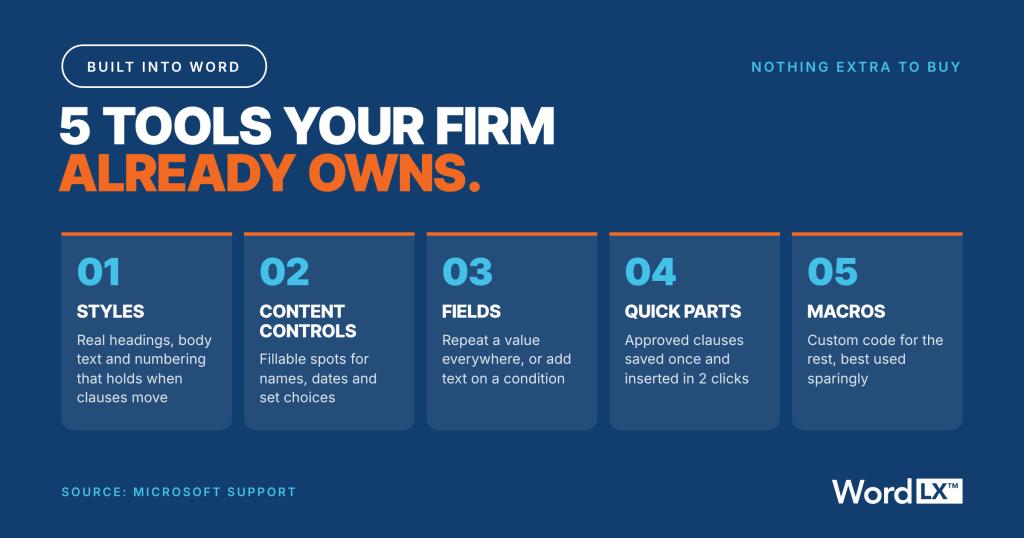
Microsoft Word ships with 5 features that cover most template automation. Your firm already pays for all of them.
| Tool | What it does in a legal template | Where to find it | Where it struggles |
|---|---|---|---|
| Styles | Controls headings, body text and numbering so the document has a real structure | Home > Styles | Breaks down when lawyers paste in text from old documents |
| Content controls | Fillable spots for names, dates and set choices, with a title and tag on each | Developer > Controls | Each document holds its own values, so data doesn’t carry to the next document |
| Fields | Repeat a value with DocProperty, or insert text based on a condition with IF | Insert > Quick Parts > Field | Nested IF fields get fragile and few people can maintain them |
| Quick Parts | Store approved clauses and insert them in 2 clicks | Insert > Quick Parts | Each saved copy has to be updated by hand when the clause changes |
| Macros | Run custom code to build or clean up a document | Developer > Macros | Microsoft blocks macros in files from the internet by default, and code depends on whoever wrote it |
Most firm templates use the first tool, and only partly. The 7 steps below put all 5 to work in the right order.
Step 1: Collect 10 real versions of one document

Pull the last 10 versions of your chosen document from the DMS, across different lawyers and different clients. Then compare them, 2 at a time, with Word’s built-in Review > Compare.
You’re sorting the text into 3 piles. Text that changed in every version is a variable, such as the client name, the fee or the effective date. Text that changed in some versions is an optional clause. Text that never changed is the standard wording.
You’ll also find disagreements. One partner caps liability at the fees paid, another at 2 times the fees. Write each one down and give the list to the practice group lead to decide. The template can only carry one approved answer for each, and this is the step where the firm picks it.
Step 2: Fix the Styles before anything else
A template built on messy formatting will pass that mess into every document it creates. So before you add a single field, rebuild the formatting with Styles.
Use Heading Styles for clause headings, one body text Style for paragraphs and numbering linked to those Styles. Clear the direct formatting first. In Word for Windows, Ctrl+Space removes character formatting and Ctrl+Q removes paragraph formatting from selected text.
Maarten Truyens, a former DLA Piper lawyer, told LawVu that “styles are the foundation of properly structured legal documents.” Styles are also what lets numbering survive when a clause moves.
Our guides to Microsoft Word Styles for lawyers and legal document numbering in Word walk through the setup.
Step 3: Mark every variable
Go through the clean document and put square brackets around every variable you found in Step 1, such as [Client Name], [Matter Number] and [Effective Date]. Then build a simple variable map with 3 columns: the variable’s name, the type of information it holds and every place it appears.
The map shows you things that are easy to miss in the document itself. The client name might appear 9 times, including the header, the signature block and a schedule. The matter number might sit only in the footer. A date might need 2 formats, “November 17, 2026” in the body and “2026-11-17” in a reference line.
Give each variable one name and use it everywhere. If the engagement letter says Client Name and the NDA says Customer, the firm has 2 names for one fact. That gets expensive once you start connecting templates.
Step 4: Turn variables into content controls or fields
First, show the Developer tab: File > Options > Customize Ribbon, then tick Developer. Its Controls group holds the content controls.
Microsoft’s guide to forms in Word lists the types. Use a plain text control for names and addresses, a date picker for dates, a drop-down list for set choices like governing law, and a check box for yes or no items. Select each control, click Properties and give it a clear title and tag that match your variable map.
For a value that repeats many times, a field is often simpler. Store the client name as a custom document property under File > Info > Properties > Advanced Properties, then insert a DocProperty field wherever it appears. Select everything with Ctrl+A and press F9 to update them all.
Content controls also pay off a second time. Microsoft’s Copilot for Legal uses native Word content controls when it drafts, as the AI section below explains.
Step 5: Save optional clauses as Quick Parts
Optional clauses from Step 1 belong in Quick Parts. Select the approved clause, then go to Insert > Quick Parts > Save Selection to Quick Part Gallery. Microsoft calls these reusable pieces building blocks.
Save each one in the template itself, using the “Save in” box, so the clauses travel with the template. If you save them to Normal.dotm, they live on one person’s computer.
For small conditional changes, an IF field can insert one piece of text or another based on a value, such as “Client” or “Clients.”
Catherine Reach, Director of the NCBA Center for Practice Management, wrote in May 2026 that “templates are still one of the most reliable ways to save time and reduce errors.” Quick Parts are an easy way to bring that reliability to clause-level choices. Note that Quick Parts work in the Word desktop app and aren’t available in Word for the web.
Step 6: Save it as a .dotx in one shared place
Save the finished file with File > Save As and choose Word Template (*.dotx). Use .dotm only if the template carries macros.
Where you save it matters as much as how. On Windows, File > Options > Advanced > File Locations has a Workgroup templates setting. Point every machine at one read-only shared folder, or publish the template from your DMS template library. Either way, the firm should end up with one copy that everyone opens.
Protect the standard wording next. In each content control’s Properties you can stop it being deleted, and Developer > Restrict Editing can limit what people change in the rest of the document.
Last, archive the old versions. If the 2019 engagement letter still sits in a shared drive, someone will use it next week. Our guide to enforcing firm-wide document standards covers how to retire old copies without policing lawyers.
Step 7: Test it on a live matter and name an owner
Give the template to one lawyer and one assistant for a real matter. Watch them use it. Note where they hesitate, what they type over and which control they skip.
Measure 2 things against the old Save As habit: the time to a first draft and the number of edits made after it. If people still retype the same paragraph, the template is missing a variable or an optional clause.
Then name an owner. One person in the practice group approves every change, keeps the variable map current and reviews the template at least once a year. When firms automate legal documents in Word and skip this part, the templates drift back into copies within months.
Rolling templates out across the firm is a people project as much as a Word project. Our guide to change management for legal tech covers what gets lawyers to adopt.
Free download
The Word Template Automation Worksheet
One page to plan your first automated template: pick the document, map its variables, tick off the 7 steps and score how close you are to the limits of native Word.
Download the worksheet (PDF)Where Word runs out when you automate legal documents
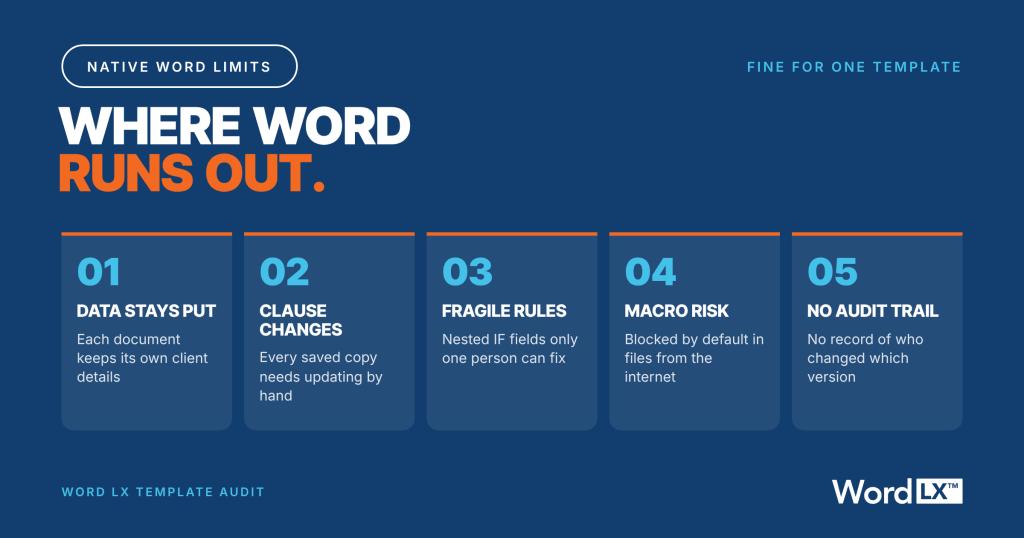
Native Word handles one well-built template. Firms run into 5 problems once they have dozens.
- Each document keeps its own data, so a closing set of 20 documents means typing the client name into 20 templates.
- Clause updates don’t spread. When the firm changes its limitation of liability clause, someone has to find every template and Quick Part that holds a copy.
- Rules get fragile. A few IF fields work fine, but nested logic becomes something only one person can maintain.
- Macros carry risk. Microsoft blocks macros in files from the internet by default, and custom code tends to stop working when its author leaves.
- Nobody can see who changed which template, when, or which version is the approved one.
AI is another reason to automate legal documents in Word
On October 15 2026, Microsoft launched Copilot for Legal. Microsoft says that when drafting a new contract, Copilot “can draw on approved precedents in SharePoint, then use native Word content controls to create structured placeholders,” according to its launch announcement.
When you automate legal documents in Word with content controls, as in Step 4, you build them in the format Microsoft’s AI already reads. The ILTA 2026 Technology Survey found that 76% of firms use Microsoft 365 Copilot.
AI adoption has moved faster than automation. A July 2026 Progress Software survey of 304 US lawyers found 85% use AI, while 77% say much of their work is still manual and only 24% say a significant part of their day is automated. The same survey found 84% say inconsistent processes reduce their efficiency.
We covered the AI side in Microsoft Copilot for Legal and in AI Drafting vs Document Automation.
Where Word LX fits
Word LX is built for firms that want to automate legal documents in Word past the point where native Word runs out. It works inside Microsoft Word as an add-in, so lawyers keep using the program they already know.
Word LX keeps the firm’s approved templates and clauses in one managed library, so there’s one current version of each. When a clause changes, it changes in one place. Its document assembly and data fill tools cut down the retyping that native templates leave behind. It applies the firm’s Styles, numbering and branding to every document it builds, and it connects with iManage and NetDocuments.
The 7 steps above still apply. A firm that has picked its documents, settled its approved wording and mapped its variables has done most of the thinking already. Word LX makes that work hold across hundreds of templates and every lawyer in the firm.
A 10-minute check before you automate legal documents in Word
Open your most used template and run these 6 checks in Word for Windows.
- Press Alt+F9 to show field codes. If nothing changes, the template has no fields. Press Alt+F9 again to switch back.
- Turn on Developer > Design Mode to see every content control. Highlighted blanks and underscores are spots that should be controls.
- Press Ctrl+Alt+Shift+S to open the Styles pane, then click into each heading. A Style named “Normal” on a heading means it was formatted by hand.
- Click a clause number. If the whole list highlights, numbering is automatic. If nothing highlights, someone typed it.
- Run File > Info > Check for Issues > Inspect Document to find old comments, tracked changes and document properties.
- Search for the names of 2 or 3 recent clients. Any hit is leftover data.
A template that passes all 6 is ready for Step 3.
FAQ
Before you automate legal documents in Word
Yes, you can automate legal documents in Word without extra software. Word includes Styles, content controls, fields, Quick Parts and macros, which together let a template prompt for facts, repeat them and offer approved clause choices. Firms usually add software when they need data to carry across many documents, central clause updates or version control across a large template library.
A law firm should automate first the documents it produces most often with the least variation, such as engagement letters, NDAs, demand letters, corporate resolutions, wills and standard leases. Rank them by how many times a year each is produced multiplied by the minutes spent cleaning up each one, and start with the highest number.
Automating one legal template in Word usually takes a day or 2 of focused work for someone who knows Word well, plus review time from the practice group. Most of that time goes into comparing past versions and agreeing the approved wording. Adding the content controls and fields is the quicker part once the variable map exists.
Word features and AI
The difference between content controls and fields in Word is how they hold information. Content controls are fillable boxes for names, dates, drop-down choices and check boxes, each with its own title and tag. Fields insert calculated or stored values, such as a document property repeated throughout, or conditional text from an IF field. Many legal templates use both.
A law firm should use macros in Word templates sparingly. Macros can handle tasks other features cannot, but Microsoft blocks macros in files from the internet by default, and custom code needs someone to maintain it. Content controls, fields and Quick Parts cover most template work without code, and they keep working after the original author leaves.
Copilot for Legal works with Word templates stored as approved precedents in SharePoint. Microsoft says it draws on those precedents when drafting a new contract and uses native Word content controls as structured placeholders. Templates with clean Styles, real content controls and no leftover client data give it a better starting point than documents patched by hand.
Past one template
Automate your whole template library inside Word
Bring your most used template to a 30 minute walkthrough. We’ll show you how Word LX keeps one approved version of it, updates clauses in one place and fills the matter details for your lawyers, all inside Microsoft Word.
Book a Word LX demo