
Every lawyer has opened a Microsoft Word document that seemed to fight back. You change one line and the numbering shifts three pages away. Paste a paragraph and the formatting explodes. Update the font across the document and half the paragraphs refuse to cooperate. You spend 20 minutes fixing what should have taken 20 seconds.
Behind almost all of these problems sits the same underlying cause: the absence of properly configured styles.
Microsoft Word styles for lawyers are the most underused feature in the entire application, and also the single most important one for anyone who works in legal documents every day. Learning to use them well is the difference between a document that cooperates and a document that drains your afternoon.
This guide explains what Word styles are, why most lawyers avoid them, what that avoidance costs, and exactly how to start using them without getting lost in the technical weeds.
Table of Contents
- What Are Microsoft Word Styles?
- Why Lawyers Avoid Microsoft Word Styles
- The Real Cost of Avoiding Word Styles
- The Anatomy of a Well-Built Style System for a Law Firm
- How to Start Using Microsoft Word Styles Well
- How Word LX Eliminates the Styles Problem for Law Firms
- FAQs
What Are Microsoft Word Styles?
A Microsoft Word style is a saved bundle of formatting rules that you can apply to text in a single click. Instead of bolding a paragraph, setting its font to Arial, making it 14 point, giving it extra space above and below, and nudging the indentation, you apply a style called Heading 2 and all of those rules are applied at once. Change the style definition later and every paragraph using that style updates automatically across the entire document.
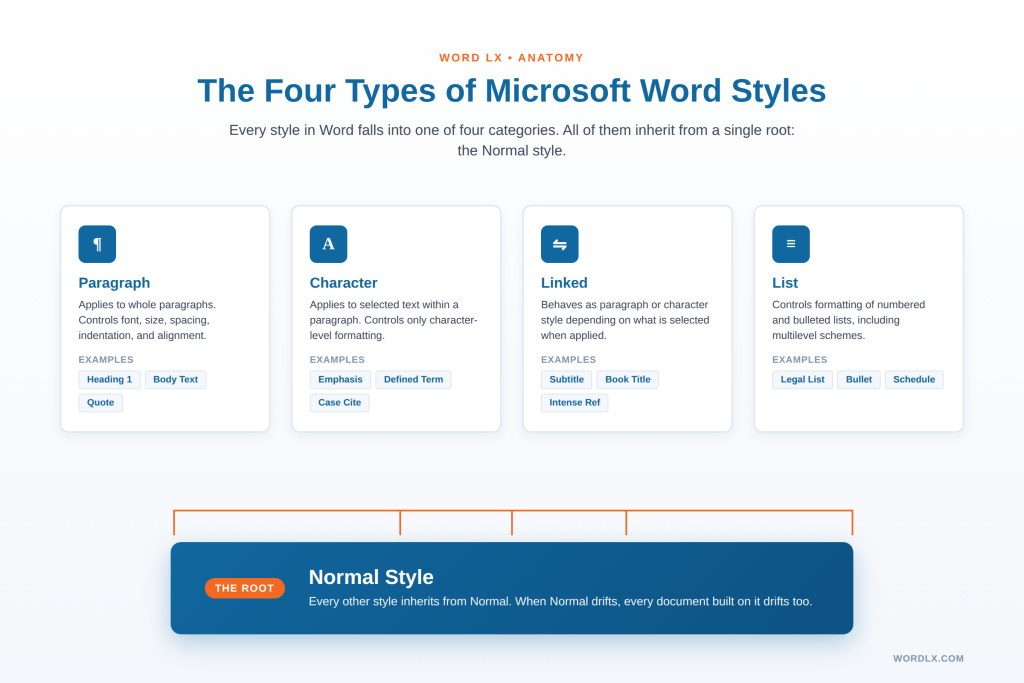
Styles in Microsoft Word come in four main types:
- Paragraph styles apply to whole paragraphs. They control font, size, spacing, indentation, alignment, and line spacing. Examples include Normal, Heading 1, Body Text, and Quote.
- Character styles apply to selected text within a paragraph. They control only character-level formatting. Examples include Emphasis, Defined Term, and Case Citation.
- Linked styles behave as either paragraph or character styles depending on what is selected when you apply them.
- List styles control the formatting of numbered and bulleted lists.
At the foundation of every Word document sits the Normal style. Every other style inherits from Normal unless explicitly overridden. This single fact explains more Word chaos than almost anything else. When the Normal style drifts, every document built on it drifts with it.
In short, Microsoft Word styles for lawyers are the structural system that every legal document quietly depends on, whether the lawyer drafting the document knows it or not.
Why Lawyers Avoid Microsoft Word Styles
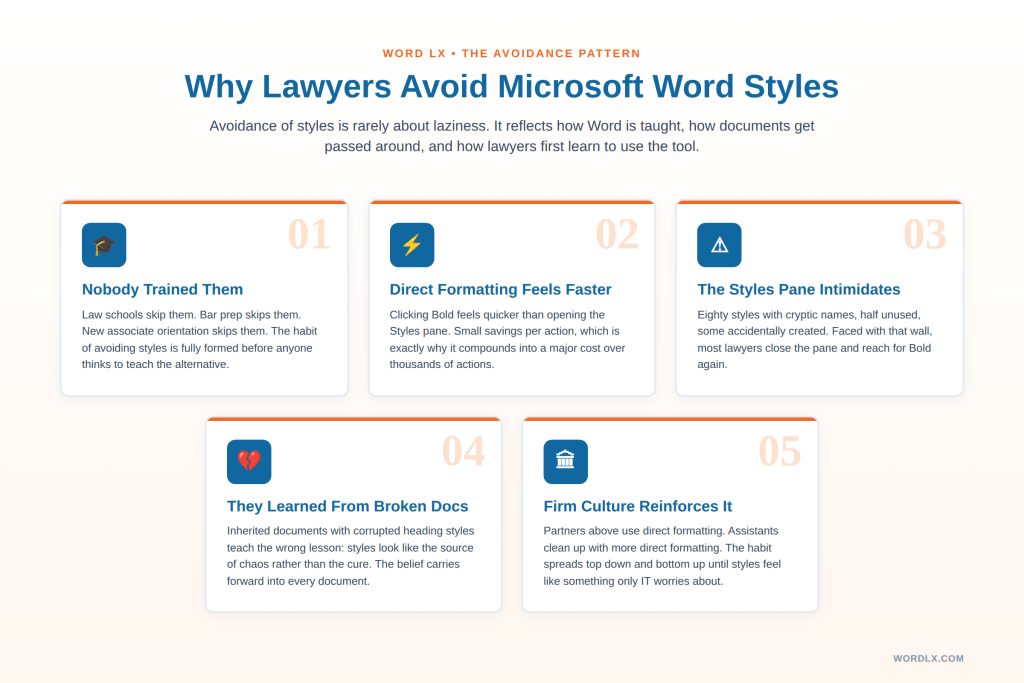
Avoidance of styles usually stems from something structural. It reflects how Word is taught, how legal documents get passed around, and how lawyers first learn to use the tool.
Nobody trained them
Most lawyers learned Microsoft Word the way most people learned Excel: by watching a colleague, copying what worked, and piecing together the rest through trial and error. Styles were never on that path. Law schools do not teach them. Bar prep does not cover them. New associate orientation skips them. By the time a lawyer is three years in, avoiding styles has become a habit. This is one of many invisible gaps that a stronger document workflow for onboarding new lawyers is meant to close.
Direct formatting feels faster
In the moment, highlighting text and clicking Bold feels quicker than navigating to the Styles pane and applying the Emphasis character style. It is a small savings per action, which is precisely why it compounds into a major cost over thousands of actions.
The Styles pane looks intimidating
Open the Styles pane in a random document and you might see 80 styles, most of them with cryptic names, half of them unused, some of them accidentally created. Faced with that wall, most lawyers close the pane and reach for direct formatting again.
They learned styles from broken documents
When styles are broken, they create bigger problems than direct formatting. Lawyers who inherit a document with corrupted heading styles experience styles as the cause of chaos rather than the cure. They learn the wrong lesson and carry it forward into every document they touch.
Firm culture reinforces the habit
Partners above them use direct formatting. Legal assistants clean up messy documents by applying more direct formatting on top. The habit propagates from the top down and the bottom up, and styles become something that only IT people worry about.
The Real Cost of Avoiding Word Styles
The cost of avoiding Microsoft Word styles for lawyers is invisible day to day and staggering over a year. It shows up in a dozen small frustrations and in several large ones.
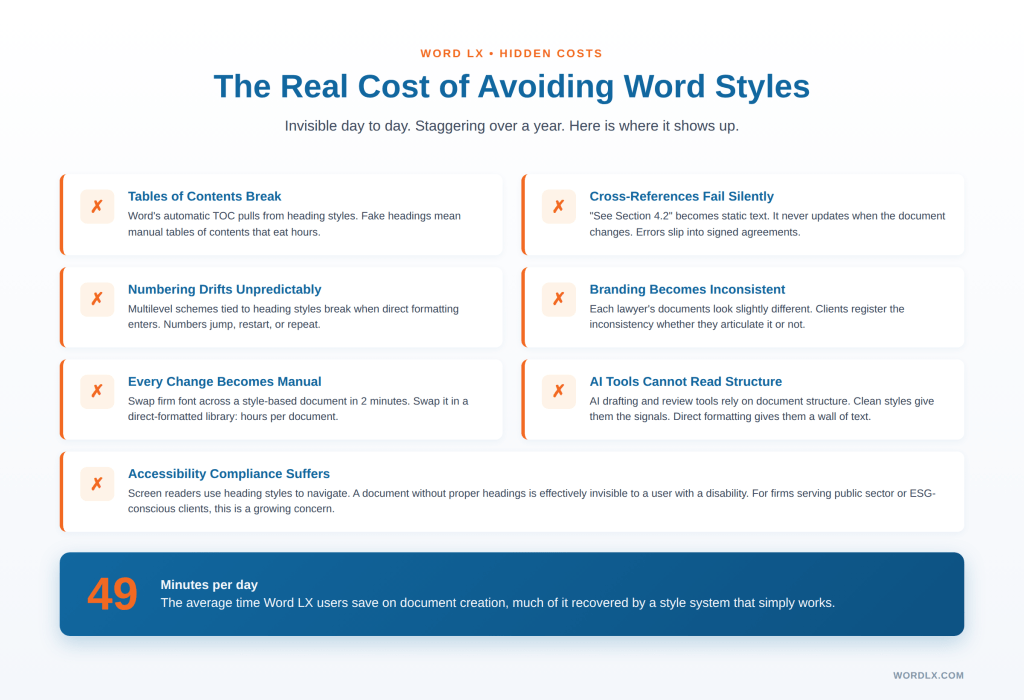
Tables of contents break
Microsoft Word’s automatic table of contents feature pulls its entries directly from heading styles. A document that uses manually formatted “fake headings” (bolded text at larger font size) cannot generate a reliable table of contents. Lawyers end up building tables of contents by hand, which is the kind of task that looks small and eats hours.
Cross-references fail silently
The phrase “See Section 4.2 below” depends on the document knowing what Section 4.2 actually is. Without properly applied styles and numbering, cross-references become static text that never updates when the document changes. Errors slip through into signed documents.
Numbering drifts unpredictably
Multilevel numbering schemes, the backbone of most contracts and court documents, are tied to heading styles. When lawyers mix direct formatting into their heading structure, numbering starts jumping, restarting, or repeating. This is one of the most frustrating experiences in Microsoft Word and also one of the most preventable.
Branding becomes inconsistent
A firm that enforces its brand through direct formatting is a firm whose brand drifts every week. Each lawyer’s documents look slightly different from the next. When those documents land in front of a client, the inconsistency registers whether the client articulates it or not. Firms serious about this often combine a strong style system with broader governance, as covered in our guide on how to enforce firm-wide document standards without policing lawyers.
Every change becomes manual
Update the firm’s body font from Times New Roman to Calibri. In a document built on styles, that is a two-minute job. In a document built on direct formatting, it can take hours per document, multiplied across every document the firm has ever produced. This is one of the clearest examples of the hidden costs of Microsoft Word workflows.
AI and automation tools struggle
This cost is becoming urgent. Tools that use artificial intelligence to draft, review, or extract information from legal documents rely on document structure to understand what they are reading. A document with clean styles is far easier for an AI tool to parse accurately. A document formatted entirely by direct formatting looks like an undifferentiated wall of text. As firms bring AI into their drafting workflows, the firms with clean styles will pull ahead dramatically. Our deeper look at AI drafting versus document automation explores why foundation matters before any AI layer.
Accessibility compliance suffers
Screen readers and accessibility tools use heading styles to navigate a document. A document without proper heading styles is effectively invisible to a user with a disability. For firms responding to public sector work or ESG-conscious clients, this is a growing concern.
The Anatomy of a Well-Built Style System for a Law Firm
A working style system needs the right styles, clearly named, consistently applied, and anchored to the firm’s templates. Quantity matters far less than quality.
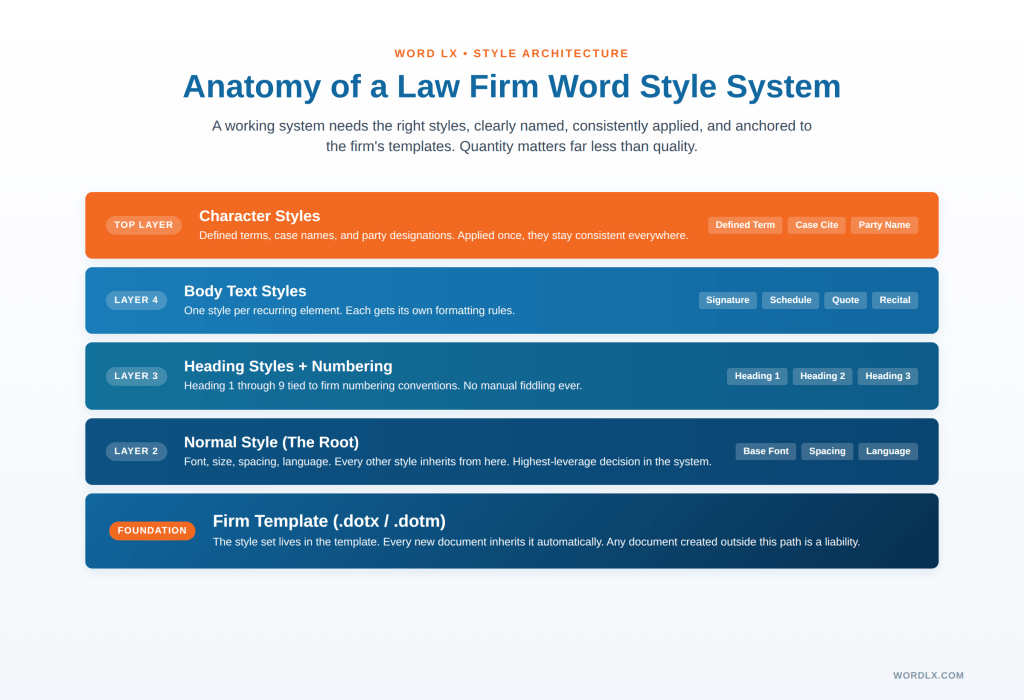
A solid Normal style
Normal is the root of the whole system. Its font, size, spacing, and language settings become the default for every other style that inherits from it. Getting Normal right is the single highest-leverage decision in a firm’s Word environment.
Heading styles tied to numbering
Heading 1 through Heading 9 should be configured to match the firm’s numbering conventions. When a lawyer applies Heading 2, the numbering, indentation, font, and spacing should all appear correctly without any further formatting. No manual fiddling. No numbered list starting at 7 for no apparent reason.
Body text styles for specific uses
Quoted material. Signature blocks. Schedules. Parenthetical citations. Each recurring element in legal documents deserves its own style with its own formatting rules.
Character styles for defined terms
Bolded defined terms, italicized case names, and small-caps for party names should all be character styles. Applied once, they stay consistent everywhere.
Clear, predictable names
A style called “Clause Body” tells lawyers exactly where to use it. A style called “JJR_Body_Font_v3” does not. Good names make the system self-explanatory.
Template-anchored
The style set lives in the firm’s templates. Individual documents inherit the style set automatically when they are created from a template. Every new document opens with the correct styles already configured. Every document created outside this path is a liability.
How to Start Using Microsoft Word Styles Well
You can get most of the value from Microsoft Word styles for lawyers with a small set of daily habits. Here are the essentials.
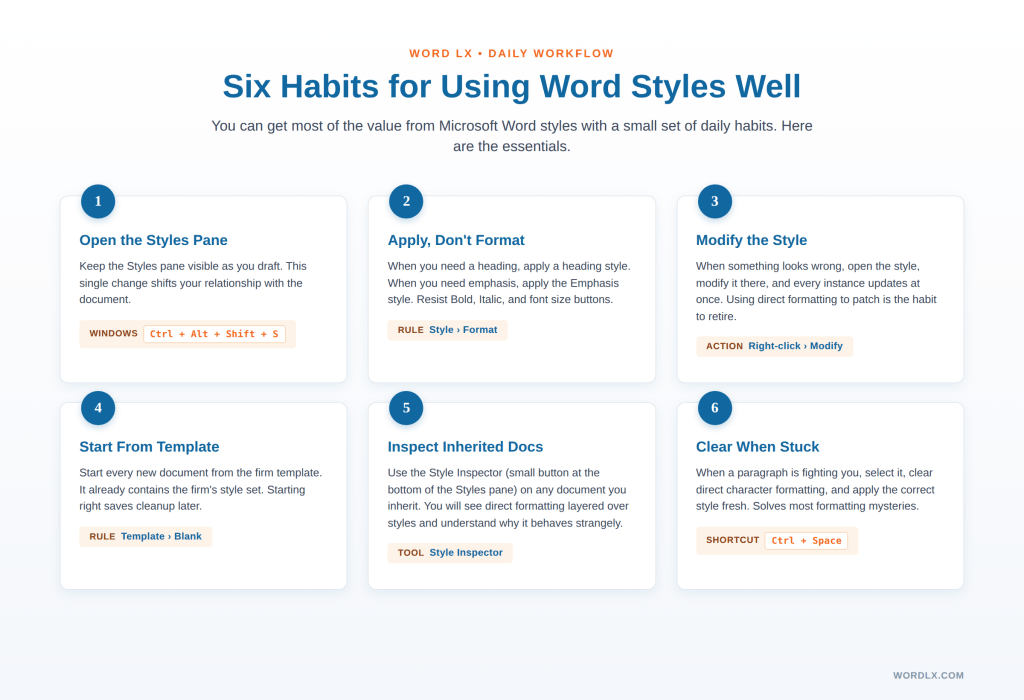
Open the Styles pane and keep it open
Press Ctrl+Alt+Shift+S on Windows, or click the small arrow in the Styles group on the Home ribbon, to open the Styles pane. On Mac, the Styles pane is available under Format, then Style. Keep it visible while you draft. This one change shifts your relationship with the document.
Apply a style rather than format
When you need a heading, apply a heading style. If you need emphasis, apply the Emphasis character style. When you need a quoted block, apply a Quote style. Resist the reflex to reach for Bold, Italic, and font size buttons. It feels slower for the first week and faster forever after that.
Modify the style rather than override it
When something looks wrong in the document, open the style, modify it there, and every instance updates at once. Right-click the style in the pane, choose Modify, change what needs to change, and watch the entire document respond. Using direct formatting to patch the look is the habit you want to retire.
Start from your firm’s template
If your firm has a template, use it. If your firm uses Word LX, the templates already contain the firm’s style set. Starting from the right foundation saves cleanup later. For more on this, see our post on the top 7 best practices for legal document creation.
Inspect styles on inherited documents
When you open a document from another lawyer, use the Style Inspector (a small button at the bottom of the Styles pane) to see what is happening. You will see direct formatting overlaid on styles, and you will understand why the document is behaving strangely. Running a broader Microsoft Word audit across the firm is a natural next step when the same problems keep appearing.
Clear formatting when in doubt
When a paragraph is fighting you, select it, press Ctrl+Space to clear direct character formatting, and apply the correct style fresh. This single move solves most small formatting mysteries.
How Word LX Eliminates the Styles Problem for Law Firms
Word LX was designed around the fact that lawyers should not have to become Word technicians to produce clean documents. The product pre-configures the firm’s style set, ties heading styles to the correct numbering schemes, and bakes the entire system into every template the firm uses.
The Word LX ribbon includes one-click styling tools for every common legal document element, from signing lines to exhibit stamps to schedules. Administrators control the master style set through a web-based admin portal. Lawyers apply styles without thinking about them. Numbering stays stable. Branding stays consistent. Cross-references and tables of contents work the first time.
Firms using Word LX have effectively solved the Microsoft Word styles for lawyers problem at the infrastructure layer. Individual lawyers can focus on the substance of their documents while the style system runs quietly underneath. On average, Word LX users report saving 49 minutes per day on document creation tasks, and much of that savings comes from a style system that simply works.
Frequently Asked Questions
A Microsoft Word style is a saved bundle of formatting rules that can be applied to text with one click. Styles control font, size, spacing, indentation, and alignment. When you update a style, every piece of text using that style updates automatically across the document.
Styles are the foundation of tables of contents, cross-references, numbering schemes, and consistent branding. Legal documents rely on these elements working correctly. Without styles, lawyers spend hours manually fixing formatting problems that styles would solve automatically.
Paragraph styles apply to entire paragraphs and control formatting like indentation, spacing, and alignment in addition to font and size. Character styles apply to selected text within a paragraph and only control character-level formatting like bold, italic, font, and color.
Styles most often appear to break when direct formatting has been applied on top of them, when documents are merged from sources with conflicting style definitions, or when the Normal style has been modified accidentally. The fix is to clear direct formatting with Ctrl+Space and reapply the correct style.
Firm-wide styles are managed through templates (specifically, the .dotx or .dotm files that new documents inherit from). A firm-wide template sets the default style list for every new document. Maintaining this at scale, across practice groups and offices, is what document management tools like Word LX are designed to handle.
Most lawyers can become confident with the core workflow in one to two hours. The habit takes about two weeks to feel natural. The payoff starts immediately and compounds indefinitely.
Stop Fighting Your Documents
Microsoft Word styles for lawyers are the foundation every legal document depends on. The firms that treat styles as foundational produce cleaner documents, in less time, with less risk. The rest keep paying the hidden tax one formatted paragraph at a time.
Word LX builds the firm’s styles, numbering, and templates into the same environment where legal work actually happens. See how Word LX solves the styles problem at the source.