
Why a Microsoft Word Audit Matters
For most law firms, Microsoft Word is where the real work happens. Every agreement, motion, or letter passes through it. Yet, behind the scenes, many firms use Word in ways that quietly drain time, consistency, and accuracy.
A Microsoft Word audit at law firms is not about checking boxes. It is about uncovering inefficiencies that have slowly become habits. When done well, it can reveal lost productivity, reduce risk, and strengthen your firm’s brand with cleaner, more consistent documents.
What Is a Microsoft Word Audit?
A Microsoft Word audit is a structured review of how your firm uses templates, styles, and workflows inside Word. It helps identify where documents go off-track and why formatting issues keep repeating.
In short, it tells you whether Word is helping your lawyers or quietly working against them.
Table of Contents
- Step 1: Review How Documents Are Started
- Step 2: Check Your Templates
- Step 3: Evaluate Styles and Formatting
- Step 4: Examine Versioning and File Names
- Step 5: Assess Collaboration Habits
- Step 6: Review Security and Metadata Practices
- Step 7: Identify Quick Wins and Long-Term Fixes
- How Word LX Helps Firms Turn Audits into Action
How to Run a Microsoft Word Audit at Your Law Firm



Step 1: Review How Documents Are Started
Ask a simple question: How does your team create new documents?
If the answer is “We copy an old one and change the names,” you have already found a red flag.
Copying previous documents can carry hidden formatting problems, outdated clauses, and inconsistent branding. Over time, those small differences multiply.
Instead, your firm should rely on standardized, clean templates. Every new document should start from a version that is approved, current, and structured correctly.
(Related: Top 7 Best Practices for Legal Document Creation)
Step 2: Check Your Templates
Templates are the foundation of your document system. Yet many firms treat them as static files that rarely get updated.
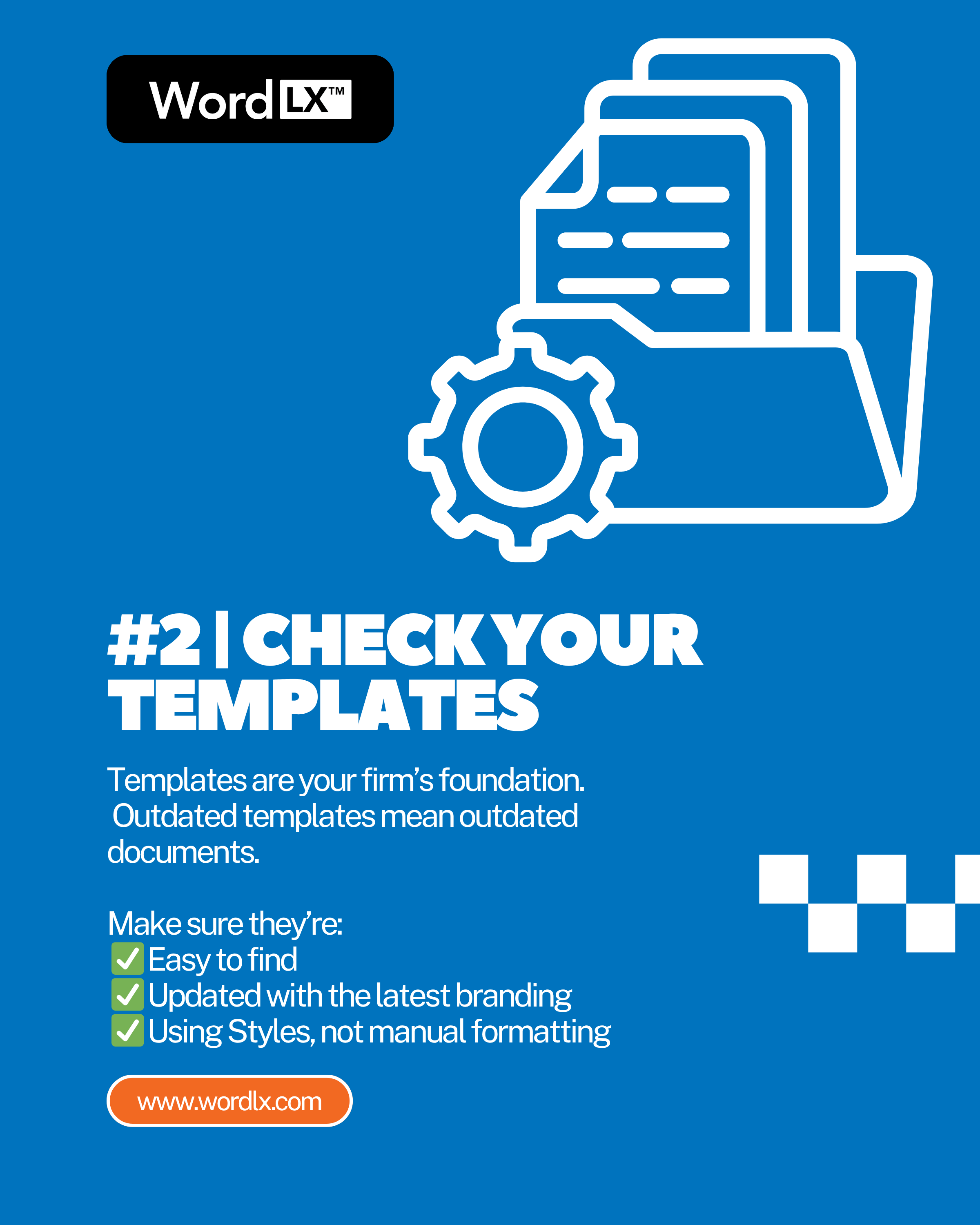
Run through your templates and ask:
• Are they easy to find and clearly labeled?
• Do they include the latest branding and disclaimers?
• Are they properly configured with Styles instead of manual formatting?
A strong template library eliminates repetition and ensures that every document produced by your firm looks professional and consistent.
Step 3: Evaluate Styles and Formatting
Formatting problems are one of the biggest sources of lost time in law firms.
During your audit, open a few sample documents and look for:
• Inconsistent fonts or spacing
• Manual numbering instead of automated lists
• Hard returns, tabs, and manual indents
• Missing or misused Styles
If lawyers are manually fixing formatting instead of using Word’s built-in tools, they are losing hours that could be spent on client work.
A consistent Style structure across your templates keeps everything aligned and prevents errors when documents are merged, edited, or reviewed.
Step 4: Examine Versioning and File Names
Version confusion is one of the easiest ways for mistakes to slip through.
Check how your team saves and names files.
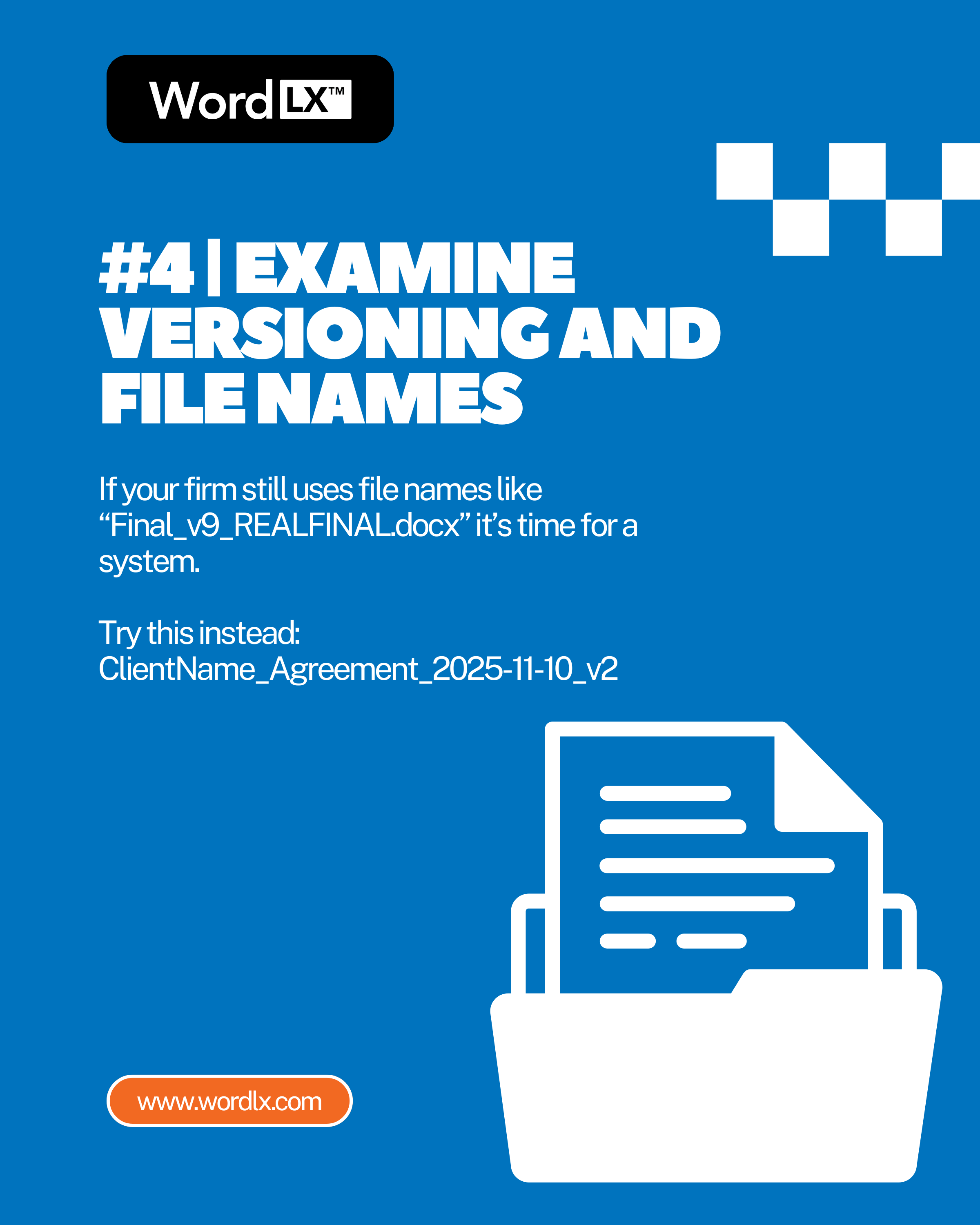
If you see names like “Final_v7_REALFINAL.docx,” it is time for a change.
Encourage a consistent, date-based versioning system such as:
ClientName_Agreement_2025-11-10_v2
This makes tracking progress easier and ensures everyone is reviewing the same file.
Step 5: Assess Collaboration Habits
Word is a powerful collaboration tool, but only when used correctly.
Review how your team uses features like Track Changes, Comments, and Compare Documents.
Are users turning off Track Changes too early?
The comments being resolved without final review?
What about edits being made directly in the document instead of suggested first?
Small improvements in collaboration habits can drastically reduce confusion, especially in multi-lawyer workflows.
Step 6: Review Security and Metadata Practices
Law firms handle confidential information every day. Your Word audit should include a check for security and privacy controls.
Confirm that your team knows how to:
- Remove metadata before sending documents externally
- Use Restrict Editing to prevent unwanted changes
- Lock templates from accidental edits
Protecting client data starts with controlling what leaves the document.
Step 7: Identify Quick Wins and Long-Term Fixes
Not every improvement needs a new system. Start with the small wins.
- Clean up your template library.
- Standardize a naming convention.
- Train staff on Styles and formatting.
Then, map out long-term goals such as automating templates, unifying firm-wide formatting rules, and introducing document management tools that integrate directly into Word.
Audits work best when they lead to clear, practical next steps.
(Check our fun clip on law firms breaking 20-year-old habits!)
How Word LX Helps Firms Turn Audits into Action
At Word LX, we help law firms take their audit results and put them into practice.
Our platform gives firms control over how documents are created, formatted, and branded across every user and department. Templates stay consistent, Styles stay intact, and formatting stays clean.
Word LX was built to make document creation easier, faster, and more reliable for lawyers who live in Microsoft Word every day.
(Learn more about Word LX for legal professionals and the story from 1981 to a legal tech firm!)
Final Thoughts
A Microsoft Word audit is not a technical exercise. It is a strategic one.
When your firm understands how Word is used (and misused) you gain insight into your real workflow. You see where time is lost, where errors creep in, and where small changes can make a major difference.
Performing a Microsoft Word audit at your law firm and improving how your firm uses Word is not just about efficiency. It is about professionalism, accuracy, and trust.