
Every lawyer has watched it happen. A clean agreement, numbered correctly all the way through, until someone deletes a paragraph and the whole schedule renumbers itself. Or a clause pasted in from another matter arrives at “1.” when it should read “8.3.” Or the cross-reference that pointed to Section 5 now points to Section 4, and nobody notices until the other side does.
Numbering feels like it should be the easy part. It is a running count. Microsoft Word has done it since the 1990s. And yet numbering is one of the most reliable ways a polished legal document falls apart at the worst possible moment, usually late, usually under deadline, usually in front of a client.
This piece explains what is actually happening under the surface when numbering breaks, the six specific ways it breaks in legal documents, how to fix each one by hand, and why the fixes never hold for long unless the numbering lives somewhere the whole firm shares.

Table of Contents
- Why Numbering Breaks in the First Place
- The 6 Ways Numbering Breaks in Legal Documents
- How to Fix Each One
- Why Manual Fixes Never Hold
- The Fix That Actually Holds: Numbering in the Template
- The Numbering Troubleshooting Checklist
- FAQ
Why Numbering Breaks in the First Place
Here is the part most lawyers never see. When you create a numbered clause in Word, the number you see on screen is not stored in the document as text. Word calculates it live, every time, from a hidden set of rules called a list definition. The “4.2.1” in front of your clause is not the characters four, point, two, point, one. It is an instruction that says “you are the first item, at the third level, of this particular list.”
That design is why numbering can renumber itself automatically, which is the feature you want. It is also why numbering breaks in ways that feel random, which is the part you do not want. Every time content moves between documents, or a paragraph gets its level changed, or a clause is pasted from an email, Word has to decide which list definition that content belongs to. When it guesses wrong, the count breaks.
Legal documents make this harder than almost any other kind of writing. A commercial agreement can run to five or six levels of nesting. Schedules restart their own numbering. Definitions, recitals, and operative clauses each follow different conventions. Cross-references depend on the numbers staying stable. Microsoft even ships a specific setting for this world, the “Legal style numbering” option inside its multilevel list controls, which tells you the problem is common enough that the product team built a switch for it.
None of this is a competence problem. Lawyers are not supposed to be typesetters. The friction is structural, and it compounds. We wrote about that compounding pattern in Why “Fixing It Later” Costs Law Firms More Than They Think. Numbering obeys the same rule. A thirty-second correction, repeated across every document and every lawyer, becomes a standing tax on the firm.
The 6 Ways Numbering Breaks in Legal Documents
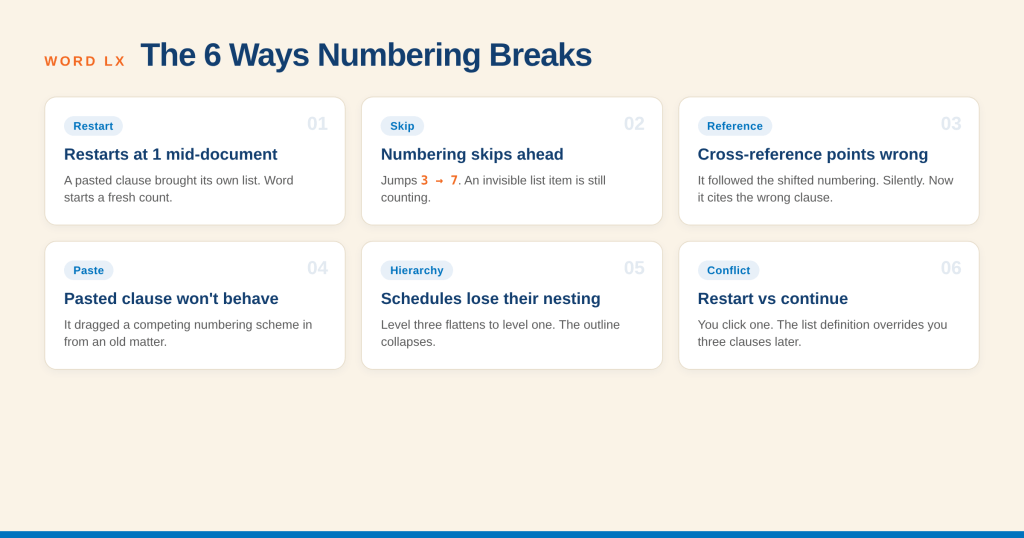
1. Numbering restarts at 1 in the middle of the document
You are at clause 12. You delete a paragraph, or accept a tracked change, and clause 13 suddenly reads “1.” Word has decided that this clause belongs to a new list rather than continuing the old one. The most common trigger is content that carried a different list definition into the document, often through a paste.
2. Numbering skips ahead
The count jumps from 3 to 7, or from (a) to (d). Word is continuing a list that it thinks already produced items 4, 5, and 6 somewhere, even though those items are not visible. This usually means an invisible or deleted list item is still influencing the count, or two paragraphs are sharing a list that should be separate.
3. Cross-references point to the wrong clause
A clause that reads “subject to Section 8.3” now reads “subject to Section 8.2” because the numbering shifted and the cross-reference updated to follow it. That is technically Word working as designed. The danger is that it updates silently. A cross-reference error in an executed agreement is not a formatting issue. It is a substantive one.
4. Pasted content brings its own numbering
You copy a well-drafted indemnity clause from a prior matter and paste it into the new agreement. It arrives with its own list definition, its own restart point, and its own formatting. Now the document contains two competing numbering schemes that look almost identical and behave nothing alike. This is the single most common source of numbering chaos in law firms.
5. Schedules and sub-clauses lose their hierarchy
A properly nested structure collapses. Level three clauses flatten to level one. A schedule that should restart at 1 continues from the body of the agreement. The outline that made the document readable turns into a flat list, and re-nesting it by hand is slow and error prone.
6. The restart-versus-continue conflict
You right-click a number and Word offers “Restart at 1” or “Continue Numbering.” You pick one. Three clauses later the opposite happens anyway, because the underlying list definition has its own restart rule that overrides your click. You are fighting the document, and the document is winning.
How to Fix Each One
Each failure has a reliable manual fix. None of them is obvious, which is why numbering feels unpredictable even to experienced users.
For an unexpected restart or skip, right-click the number and choose “Continue Numbering” or “Set Numbering Value.” Setting an explicit value forces the count rather than leaving it to Word’s guess. This overrides the automatic behavior for that item.
For broken cross-references, select the whole document with Ctrl+A and press F9 to update all fields, then read every cross-reference in context. Never trust that they updated to the right target. A cross-reference points to a bookmark, and if the bookmarked clause moved or was retyped, the reference can quietly attach to the wrong place.
For pasted content, paste using “Keep Text Only” or “Merge Formatting” so the clause adopts the destination document’s list definition instead of dragging its own along. If the clause is already in and misbehaving, select it and reapply the document’s own list style from the multilevel list gallery.
For collapsed hierarchy, use Tab and Shift+Tab to demote and promote list items to the correct level, or open the multilevel list dialog and relink the levels to the correct style. Working in Word’s Styles rather than direct formatting makes this far more stable, which is the whole argument of our piece on Microsoft Word Styles for lawyers.
For the restart-versus-continue conflict, the durable answer is to define the restart behavior in the list style itself rather than clicking it per document. That is exactly the point where per-document fixes stop being enough.
Why Manual Fixes Never Hold
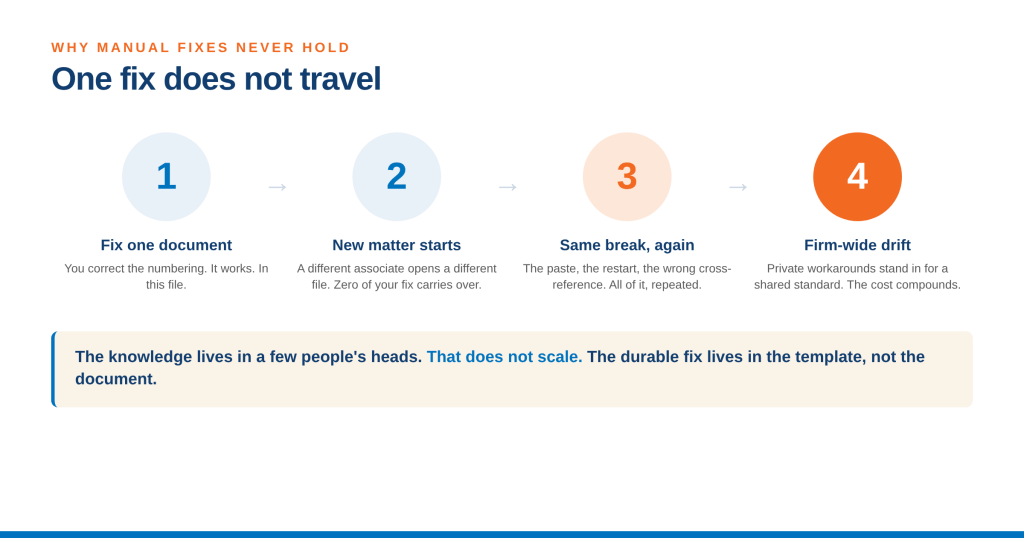
Every fix above works. None of them lasts, for one reason. The fix lives in one document. The next agreement, drafted by a different associate from a different starting file, inherits none of it. The knowledge of how to fix numbering lives in a few people’s heads, and those people are the ones everyone interrupts.
Watch the pattern across a firm. A senior associate knows the F9 trick. A paralegal knows the paste-special habit. One partner refuses to touch numbering at all and reformats by hand at 7pm. A document specialist keeps a “clean” master file that only they know is the real master. None of that scales. It is a set of private workarounds standing in for a firm-wide standard.
The cost hides well because it never appears on a timesheet as “fixed numbering.” It appears as slower turnarounds, as a partner redoing formatting instead of reviewing substance, and as the occasional cross-reference error that reaches a client. Bloomberg Law has reported that lawyers lose meaningful time each day just to document search and rework, and numbering is squarely inside that number. Multiply a small recurring correction across every lawyer and every matter, and the firm is funding a problem it never chose to fund.
The Fix That Actually Holds: Numbering in the Template
Thornton Grout Finnigan LLP replaced an in-house template solution with Word LX. TheNumbering stops breaking when the numbering rules stop living inside individual documents and start living in a shared template that the whole firm draws from. Instead of each lawyer rebuilding the multilevel list by hand, or inheriting whatever list definitions a prior document happened to carry, everyone starts from the same defined structure.
This is the layer document automation platforms such as Word LX are built to own. Word LX lives inside Microsoft Word as a ribbon-level add-in and manages numbering, Styles, clause libraries, and templates centrally, so the numbering behaves the same way in every document a firm produces. When numbering is defined once, at the template level, the six failure modes above mostly stop occurring, because the conditions that cause them are removed rather than corrected after the fact.
It also connects to a bigger shift in how firms produce documents. When clauses come from a managed library rather than a copy-paste from an old matter, the pasted-numbering problem disappears at the source. That is the premise behind document assembly for law firms, which builds documents from pre-approved, correctly numbered components instead of editing last time’s file into this time’s deal.
The goal is not to make lawyers better at Word. It is to make the document stop asking them to be.
Download the Legal Document Numbering Troubleshooting Checklist
A one-page reference your team can keep open while drafting. Six failure modes, the exact fix for each, the keyboard shortcuts that matter, and a 30-second pre-filing audit. Free PDF.
DOWNLOAD CHECKLISTA Pre-Filing Numbering Audit (30 Seconds)
“Our firm is a long-standing Word LX client and migrated to the new version in 2023. It’s easy to train and get new users to adopt quickly and the web-based admin portal makes it simpler than ever to manage our templates, users and make other system changes. Word LX makes our firm more efficient and our staff and lawyers love it.”
Mike Allicock, Firm Financial Officer, Bales Beall
The pattern across firms that get adoption right is the same. The rollout is treated as workflow work, the partner sponsor is named early, the pilot group runs before the firm-wide launch, training centers on what lawyers actually do, support is embedded inside Word, the metrics measure adoption rather than deployment, and the feedback loop is open.
Frequently Asked Questions
Word ties every numbered item to a hidden list definition. When a paragraph gets associated with a new or different list definition, usually through pasted content or an accepted tracked change, Word treats it as the first item of a fresh list and restarts at 1. The fix is to right-click the number and choose “Continue Numbering,” or to define the numbering in a shared template so the association cannot drift.
Paste with “Keep Text Only” or “Merge Formatting” instead of a standard paste. A standard paste brings the source document’s list definition with it, which creates a competing numbering scheme. Keeping text only forces the clause to adopt your document’s existing numbering.
Cross-references follow the numbering. When numbering shifts, the reference updates to match, and it does this silently. Always select the whole document with Ctrl+A and press F9 to refresh fields, then read each cross-reference against the clause it targets before the document goes out.
It is a setting inside Word’s multilevel list controls that forces numbering into the conventions legal documents expect, such as 1, 1.1, 1.1.1. It helps, but it operates per document, so it does not solve the firm-wide consistency problem on its own.
Yes. The durable answer is to define numbering, Styles, and clause structure once in a shared template rather than in individual documents. Document automation platforms such as Word LX manage this centrally inside Microsoft Word, so every document a firm produces numbers the same way and the common failure modes stop occurring at the source.