

Every lawyer has lived this moment. You are deep into a 60-page agreement, the deadline is closing in, and you go to insert a new section. The numbering jumps from 4.3 to 4.1 again. Or section 7 suddenly becomes section 1. Or your sub-paragraphs decide that today they would like to be lowercase Roman numerals instead of bullets.
You right-click,try Continue Numbering, try Restart at 1. You try the magic combination of Format Painter, undo, and prayer. Sometimes it works. Often it makes everything worse.
The frustrating truth is that Word numbering keeps breaking for the same reasons in nearly every law firm. The bug almost always lives in how the document was built, how it was reused, and how Microsoft Word handles list rules underneath the surface, rather than in the document you happen to be editing. This guide explains exactly why it happens and how to stop fighting your own documents.

Table of Contents
- Why Numbering Hits Lawyers Hardest
- The Real Reasons Word Numbering Keeps Breaking
- Why Restart at 1 and Continue Numbering Will Not Save You
- The Fixes That Actually Work
- How to Prevent Numbering Disasters Going Forward
- The Bigger Picture: Numbering Reflects Document Maturity
- Frequently Asked Questions
Why Numbering Hits Lawyers Hardest
Microsoft Word numbering issues exist in every industry, but legal documents amplify the problem in ways most other professionals never experience. Three factors make law firms uniquely vulnerable.
Document length and structure. A standard contract or court filing runs anywhere from 20 to 200 pages with deeply nested clauses, sub-clauses, exhibits, schedules, and cross-references. Each level of nesting creates another opportunity for numbering to drift. A novelist might use one or two heading levels. A litigator routinely uses six.
Heavy document reuse. Legal drafting is built on precedent. Lawyers pull from old agreements, copy clauses across files, merge sections from multiple matters, and combine paragraphs from email threads. Every paste carries hidden numbering rules that conflict with the destination document.
The cost of a single mistake. When a marketing brochure renumbers itself, nobody notices. When an indemnity clause renumbers itself in a signed agreement, you have a problem that may not surface until the dispute. Section 7.3(b)(ii) referenced in twelve other places suddenly becomes 7.2(b)(ii) and the entire document loses internal consistency.
This is why a problem that looks cosmetic to outsiders is treated as a five-alarm fire inside a law firm.
The Real Reasons Word Numbering Keeps Breaking
If you have ever wondered why fix Word numbering is one of the most searched legal tech queries, the answer comes down to five underlying causes. Once you understand them, the fixes start to make sense.
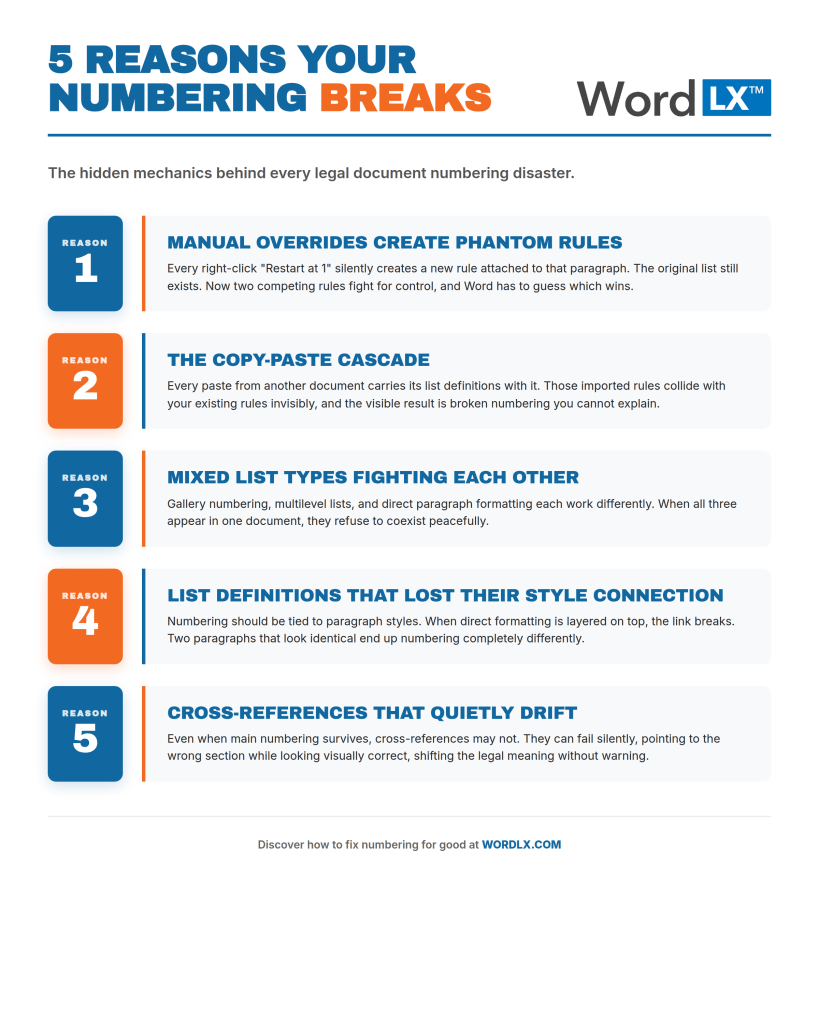
Reason 1: Manual overrides create phantom rules
The single biggest cause of broken numbering is manual override. A lawyer right-clicks a number, picks Restart at 1 or Set Numbering Value, and Word silently creates a new list rule attached only to that paragraph. The original list definition still exists. Now there are two competing rules in the same document, and Word has to guess which one to apply when something downstream changes.
Multiply this across forty paragraphs over six rounds of edits and you have a document with dozens of phantom numbering rules ghosting around in the file. When you delete a paragraph or paste new content, those phantom rules collide and the visible numbers go haywire.
Reason 2: The copy-paste cascade
Every time content moves from one Word document to another, it brings its list definitions with it. The destination document tries to merge those imported rules with its existing rules. Sometimes Word picks the right interpretation. Often it does not.
This is why a paragraph that looked perfectly numbered in the source file suddenly appears as bullets, restarts at the wrong number, or jumps levels when you paste it into your master document. The visible result is broken. The underlying cause is rule conflict that happened invisibly during paste.
Reason 3: Mixed list types fighting each other
Microsoft Word offers several ways to create numbered content: gallery numbering, single-level lists, multilevel lists tied to styles, and direct paragraph formatting. Most legal documents end up using all of these at once because different drafters built different sections in different ways over the years.
When these list types meet inside the same document, they do not coexist peacefully. Gallery lists do not understand multilevel rules. Direct formatting overrides style-linked numbering. The visible chaos is the symptom of three or four numbering systems trying to occupy the same paragraphs at the same time.
Reason 4: List definitions that lost their connection to styles
Properly built legal documents tie numbering to paragraph styles. Heading 1 produces 1, Heading 2 produces 1.1, Heading 3 produces 1.1.1, and so on. When the link between the style and the list definition is broken, usually because someone applied direct formatting on top of a style, the numbering becomes orphaned.
You can see the symptom clearly: two paragraphs that look identical but number differently. One is still tied to the style, the other is floating free with manually applied formatting.
Reason 5: Cross-references that quietly drift
Even when your main numbering survives an edit, your cross-references may not. Every time you reference Section 4.3 in another paragraph, Word stores a hidden link to that paragraph’s bookmark. If that paragraph gets renumbered, deleted, or restructured, the cross-reference either updates correctly, points to the wrong section, or breaks entirely.
The danger here is silent failure. The numbers in your cross-references can stay visually plausible while pointing to the wrong substantive content. A reader reviewing the final document never sees the bug, but the legal meaning has shifted.
Why Restart at 1 and Continue Numbering Will Not Save You

Most lawyers fix broken numbering using two right-click options: Restart at 1 and Continue Numbering. These feel like they should solve the problem. They almost never do.
The reason goes back to phantom rules. Every time you select Restart at 1, Word creates a new override that says “this specific paragraph, regardless of context, must start at 1.” That override stays attached to the paragraph forever. The next time you cut, paste, or rearrange, the override moves with the paragraph and starts conflicting with the surrounding rules.
Continue Numbering does the same thing in reverse. It tells Word to ignore the list rule and pull a number from the previous list it can find. When the document changes, that target moves. The number reattaches to whatever happens to be nearby, which is rarely what you wanted.
The result is a document that gets harder to fix every time you try to fix it. Each manual override adds another conflicting instruction. After enough rounds of patching, even simple edits trigger cascading numbering failures.
The faster you patch broken numbering with right-click commands, the faster you bury the document in conflicting rules. Most numbering disasters in law firms started with a series of small, well-intentioned manual overrides.
For a deeper look at how small document fixes compound into big problems, see our breakdown of why fixing it later costs law firms more than they think.
The Fixes That Actually Work
Real fixes address the underlying cause and restore predictable behavior to the document instead of papering over the visible mistake. Here are the four moves that work in actual legal practice.
Fix 1: Tie every numbered paragraph to a style
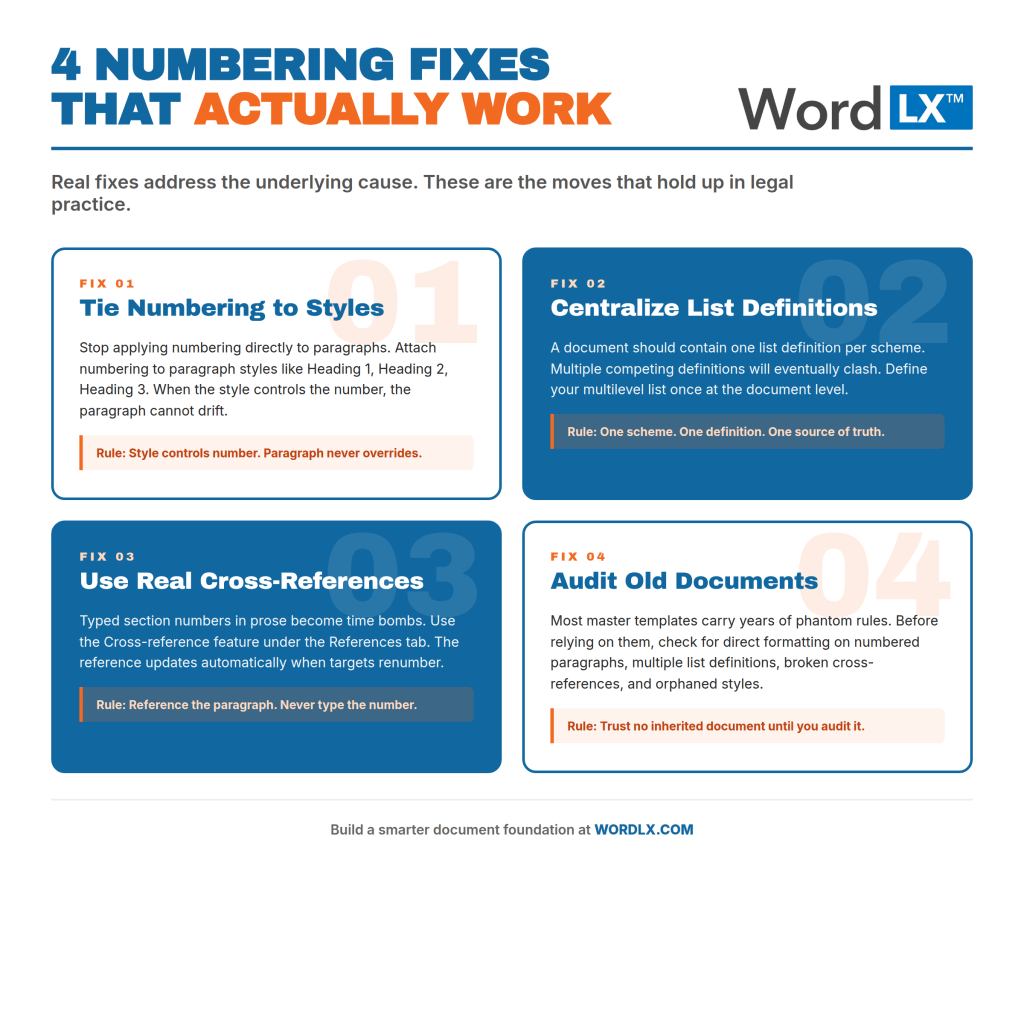
Stop applying numbering directly to paragraphs. Instead, attach numbering to paragraph styles. Heading 1, Heading 2, Heading 3, and any custom numbered styles your firm uses should each control their own list level. When the style controls the numbering, the paragraph cannot drift.
This is how well-built legal templates handle structure. It is also why moving away from a template-based workflow toward copying old documents is so corrosive. Templates carry the style-to-list connection cleanly. Copied documents carry it broken.
Fix 2: Centralize your list definitions
A single document should contain a single list definition for each numbering scheme. If you find a multilevel list defined three different times in the same file, you have already lost. The conflicting definitions will eventually clash.
The cleanest way to manage this is through a multilevel list tied to the document’s style set, defined once at the document level. Every numbered paragraph references that one definition. When you change the format in one place, every numbered paragraph updates correctly.
Fix 3: Use real cross-references, not typed text
If your document references other sections by typing the number directly into the prose, you have a time bomb. The moment something renumbers, your cross-reference becomes a lie.
Word has a proper Cross-reference feature under the References tab that links to the actual paragraph. When the target paragraph renumbers, the reference updates automatically when you press F9 or print. This single change eliminates an entire category of late-stage document errors.
Fix 4: Audit your existing documents before you trust them
Most law firms have hundreds of master templates and precedent documents that were built years ago, edited by dozens of people, and silently accumulated phantom rules over time. Before relying on them as starting points, run a structured audit. Check for direct formatting on numbered paragraphs, multiple list definitions, broken cross-references, and orphaned styles.
For a step-by-step audit framework, see our guide on how to run a Microsoft Word audit at your law firm.
How to Prevent Numbering Disasters Going Forward
Fixing the documents you have is half the battle. The other half is making sure new documents do not develop the same problems. Three habits prevent most numbering issues at the source.
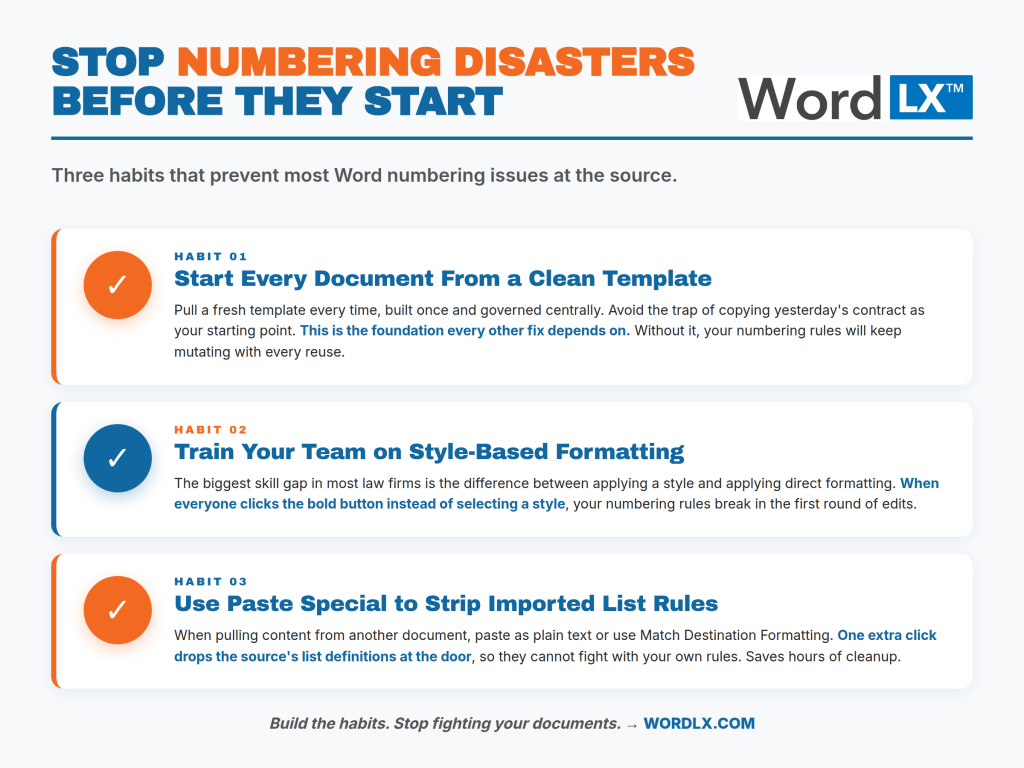
Start every document from a clean template. Pull a fresh template every time rather than copying yesterday’s contract. The template should be built once, governed centrally, and accessed fresh on every new matter. This is the foundation of every other fix in this guide. Without it, your numbering rules will keep mutating with every reuse.
Train associates and assistants on style-based formatting. The single biggest skill gap in most law firms is the difference between applying a style and applying direct formatting. When everyone defaults to clicking the bold button or the numbering icon instead of selecting a style, your numbering rules break within the first round of edits.
Use Paste Special to strip incoming list rules. When pulling content from another document, paste it as plain text or use Match Destination Formatting. This drops the source document’s list definitions at the door so they cannot fight with your own rules. It takes one extra click and saves hours of cleanup.
Firms that build these habits into their daily document workflow experience dramatically fewer numbering issues. Firms that do not will keep paying the cleanup tax forever. For more on why hidden costs accumulate in Microsoft Word workflows, the full breakdown is worth a read.
The Bigger Picture: Numbering Reflects Document Maturity

Numbering problems are typically a symptom of how seriously a firm treats its document infrastructure. Firms that view documents as throwaway artifacts, copied and patched with each new matter, will experience numbering disasters indefinitely. Firms that treat documents as governed assets, built from clean templates and consistent styles, almost never deal with these issues.
The difference shows up everywhere. Onboarding goes faster because new hires inherit a working system. Review cycles shrink because reviewers trust the structure. Brand consistency holds because every document carries the same DNA. Risk drops because cross-references stay accurate.
The firms saving the most time on documents are running a different operating system underneath. To see how that translates into measurable results, check our analysis of how law firms save up to one hour per day on document tasks.
Where Word LX Comes In
Word LX was built to remove the underlying causes of numbering breakage rather than to patch the symptoms. Templates are governed centrally and rebuilt cleanly. Numbering is tied to firm-controlled styles that cannot drift. List definitions are managed at the firm level rather than the document level. Cross-references stay intact through edits. Manual overrides are replaced with structured tools that respect the document’s logic.
For firms preparing for the next generation of document workflows, the upcoming Advanced Numbering and Personal Numbering Schemes capabilities make sharing and managing complex numbering schemes simple, even across teams that work across multiple matters.
Stop Fighting Your Numbering
Word LX gives law firms a smarter foundation for document creation, with template management and numbering controls that hold up over time. See how it works in your firm.
Frequently Asked Questions
Word numbering breaks because of conflicting rules under the surface. Manual overrides, copy-pasted content from other files, and mixed list types create competing instructions that Word has to reconcile. Legal documents are especially affected because they are long, deeply nested, and heavily reused across matters, which gives those conflicts more chances to compound.
Permanent fixes require attaching numbering to paragraph styles instead of applying it directly, using a single centralized multilevel list definition for the document, replacing typed cross-references with real Cross-reference fields, and stripping list rules from pasted content using Paste Special. Right-click options like Restart at 1 and Continue Numbering are quick patches that usually make the underlying problem worse.
A numbered list is a single-level list with one numbering format, such as 1, 2, 3. A multilevel list supports nested levels, such as 1, 1.1, 1.1.1, and is the standard structure for legal documents. Multilevel lists can be tied to paragraph styles so that each heading level produces the correct number automatically.
Mid-document numbering restarts almost always come from one of three causes: a manual Restart at 1 override applied earlier in the document, a list definition that got duplicated when content was pasted in, or a section break that has list rules attached to it. The fix is to find and remove the override rather than applying another override on top.
Yes. The safest approach is to use Paste Special with the Keep Text Only option, which strips all formatting and list rules from the source. You then reapply your destination document’s styles, which automatically restore the correct numbering. This prevents the source document’s rules from conflicting with your master document.
Use Word’s built-in Cross-reference feature under the References tab. It links to the actual paragraph rather than to typed text, so when numbering changes, the reference updates automatically. Press F9 to refresh all fields before sending or printing. Avoid typing section numbers directly into prose, as those references will not update when numbering shifts.
A document automation tool like Word LX prevents numbering problems by enforcing centralized list definitions, governed templates, and style-linked numbering across an entire firm. Lawyers cannot accidentally override the numbering rules, and templates are rebuilt cleanly each time rather than copied from older files. This eliminates the most common causes of numbering breakage at the source.
Key Takeaways
Word numbering issues are a symptom of deeper structural problems in how legal documents are built and reused. The right-click fixes most lawyers default to make the underlying conflicts worse over time. The lasting solution is to attach numbering to styles, centralize list definitions, use proper cross-references, and start documents from clean templates rather than from copies of yesterday’s work.
Firms that take this seriously stop losing hours to renumbering. Firms that do not will keep paying the same cleanup tax on every matter, indefinitely.
Word LX helps law firms build the document foundation that prevents numbering disasters before they start. See how Word LX works →