

Why Microsoft Word Still Matters in Law
Lawyers spend more time in Microsoft Word than in any other software. It is the backbone of every contract, agreement, motion, and client letter that leaves a law firm. Despite the growing number of tools available, Word remains central to legal work across Canada and the United States.
Yet many legal professionals use only a fraction of Word’s capabilities. Small inefficiencies, such as copying old documents or manually fixing formatting, can add up to hundreds of lost hours each year. This guide, Top 10 Microsoft Word Tips Every Lawyer Should Know, will help lawyers work faster, with fewer mistakes and more consistent results.
Table of Contents
- Use Styles to Format, Not Manual Styling
- Create Templates Instead of Copying Old Files
- Automate Headers, Footers, and Letterheads
- Use Quick Parts and AutoText for Reusable Clauses
- Track Changes the Right Way
- Use the Navigation Pane to Move Efficiently
- Master Cross-Referencing and Table of Contents
- Protect Documents with Restrict Editing
- Run a “Show/Hide” Cleanup Before Sending
- Save and Version Documents with Purpose
Top 10 Microsoft Word Tips Every Lawyer Should Know








1. Use Styles to Format, Not Manual Styling
Styles are one of Word’s most powerful features. They control fonts, spacing, and numbering across your document. Instead of manually adjusting each heading or paragraph, apply and customize Styles.
This approach ensures formatting consistency, especially when multiple people edit the same file. If your firm standardizes Styles in its templates, your team will spend less time fixing formatting and more time focused on legal work.
2. Create Templates Instead of Copying Old Files
Copying an old document feels efficient, but it carries hidden risks. Old files may contain outdated clauses, incorrect branding, or broken formatting.
Start from a clean, approved template instead. Templates maintain structure, language, and metadata so every new document starts correctly. It is one of the simplest ways to improve accuracy and professionalism.
(Related: Quick Video on How We Use Word LX to Create Legal Documents Fast)
3. Automate Headers, Footers, and Letterheads
Manually editing headers and letterheads wastes time and creates room for error. Automation allows your firm to switch offices, addresses, or practice groups instantly without touching the formatting.
This also ensures your firm’s branding remains consistent across every document. If your firm frequently updates its logo or address, this one step can prevent dozens of outdated versions from circulating.
4. Use Quick Parts and AutoText for Reusable Clauses
If you regularly reuse the same clauses, disclaimers, or signatures, store them in Quick Parts or AutoText. These features allow you to insert entire paragraphs or sections with one click.
This practice eliminates repetitive typing and prevents accidental errors that often come from copy-pasting between documents.
5. Track Changes the Right Way
Track Changes is essential for collaboration, but it can quickly become overwhelming if not managed properly. Customize your Track Changes settings to highlight meaningful edits and ignore formatting changes that create noise.
Before finalizing a document, use the Review Pane to check for unresolved edits and comments. Consistent use of Track Changes improves collaboration, reduces version confusion, and keeps everyone accountable.
6. Use the Navigation Pane to Move Efficiently
Large legal documents can easily exceed 100 pages. The Navigation Pane allows you to jump instantly between sections by clicking on headings.
To use this feature, apply Heading Styles correctly throughout your document. This not only improves navigation but also creates a cleaner structure for your Table of Contents later.
7. Master Cross-Referencing and Table of Contents
When clauses, exhibits, or sections change, manual updates can lead to errors. Word’s cross-referencing tools and automatic Table of Contents features update these links automatically.
If your firm drafts complex contracts or litigation documents, mastering these tools can eliminate hours of manual proofreading and re-numbering.
8. Protect Documents with Restrict Editing
Legal documents often contain sensitive or confidential information. Restrict Editing allows you to lock sections of a document so that others cannot make changes without permission.
You can allow comments or tracked changes while preventing edits to key sections. This ensures data integrity and minimizes risk when sharing drafts internally or with clients.
9. Run a “Show/Hide” Cleanup Before Sending
Before sending any legal document, click the ¶ button on the Home tab to turn on “Show/Hide.” This reveals hidden formatting marks such as extra spaces, tabs, and hard returns.
A quick cleanup pass ensures the document looks professional and consistent on any device. A 30-second cleanup can save 30 minutes of rework if a layout issue appears later.
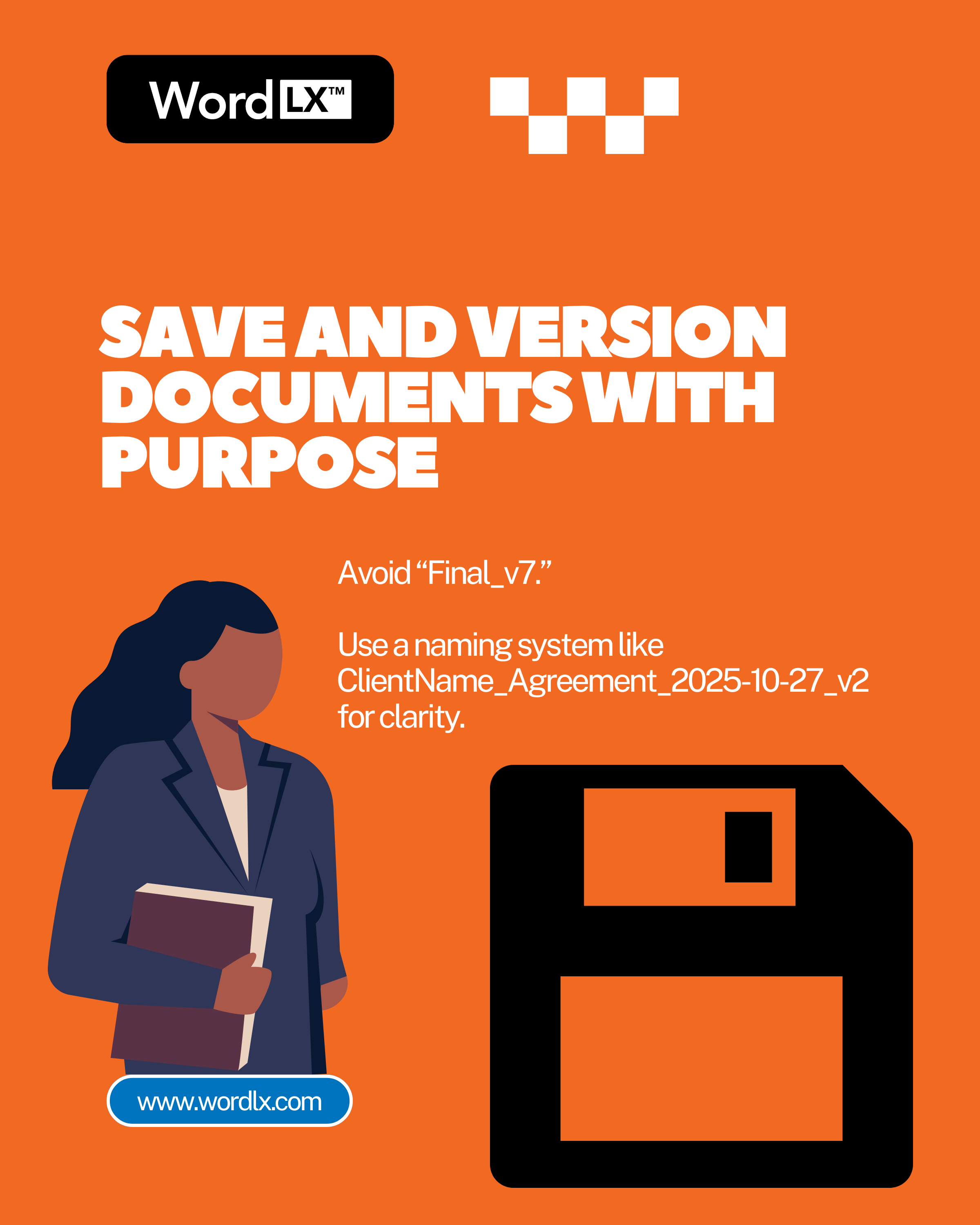
10. Save and Version Documents with Purpose
Avoid naming files “Final_v7” or “Final_FINAL.” Create a consistent versioning system that includes the client name, matter, and date, such as:
ClientName_Agreement_2025-10-27_v2
Clear versioning prevents confusion, helps with audit trails, and makes collaboration smoother for everyone involved.
How Law Firms Benefit from Better Word Habits
Improving document habits does more than save time. It directly impacts productivity, accuracy, and client confidence.
When every lawyer in the firm follows the same document standards, collaboration becomes easier and output becomes more reliable. Firms that prioritize consistency in Word also protect their brand reputation by ensuring that every document leaving the office looks professional.
Good habits in Microsoft Word also support compliance with professional obligations. They reduce the risk of errors, improve version control, and help meet deadlines more efficiently.
(Related: Top 7 Best Practices for Legal Document Creation)
How Word LX Helps Law Firms Work Smarter
At Word LX, we help law firms put these best practices into action. Our tools are designed specifically for lawyers and legal teams who live in Microsoft Word every day.
Word LX makes document creation easier, faster, and more consistent by managing templates, automating formatting, and standardizing firm-wide styles. The result is less time spent fixing formatting issues and more time focused on practicing law.
Whether you are building a document from scratch or collaborating with a client on revisions, Word LX ensures that every file your firm produces reflects your quality, professionalism, and brand.
(Learn more about Word LX for legal professionals)
Final Thoughts
Top 10 Microsoft Word Tips Every Lawyer Should Know is more than a productivity guide. It is a roadmap for improving the quality and efficiency of your firm’s work.
Start small. Implement a few of these tips and build from there. Over time, these small changes will compound into significant time savings, cleaner documents, and happier clients.
For firms in Canada and the United States looking to improve their document workflows, mastering Word is not optional. It is the foundation for everything that follows.